Models#
The Models entry in the top bar, next to the studios, gathers every model concern in one place. Hotkey 5 opens it.
| Tab | What you do there |
|---|---|
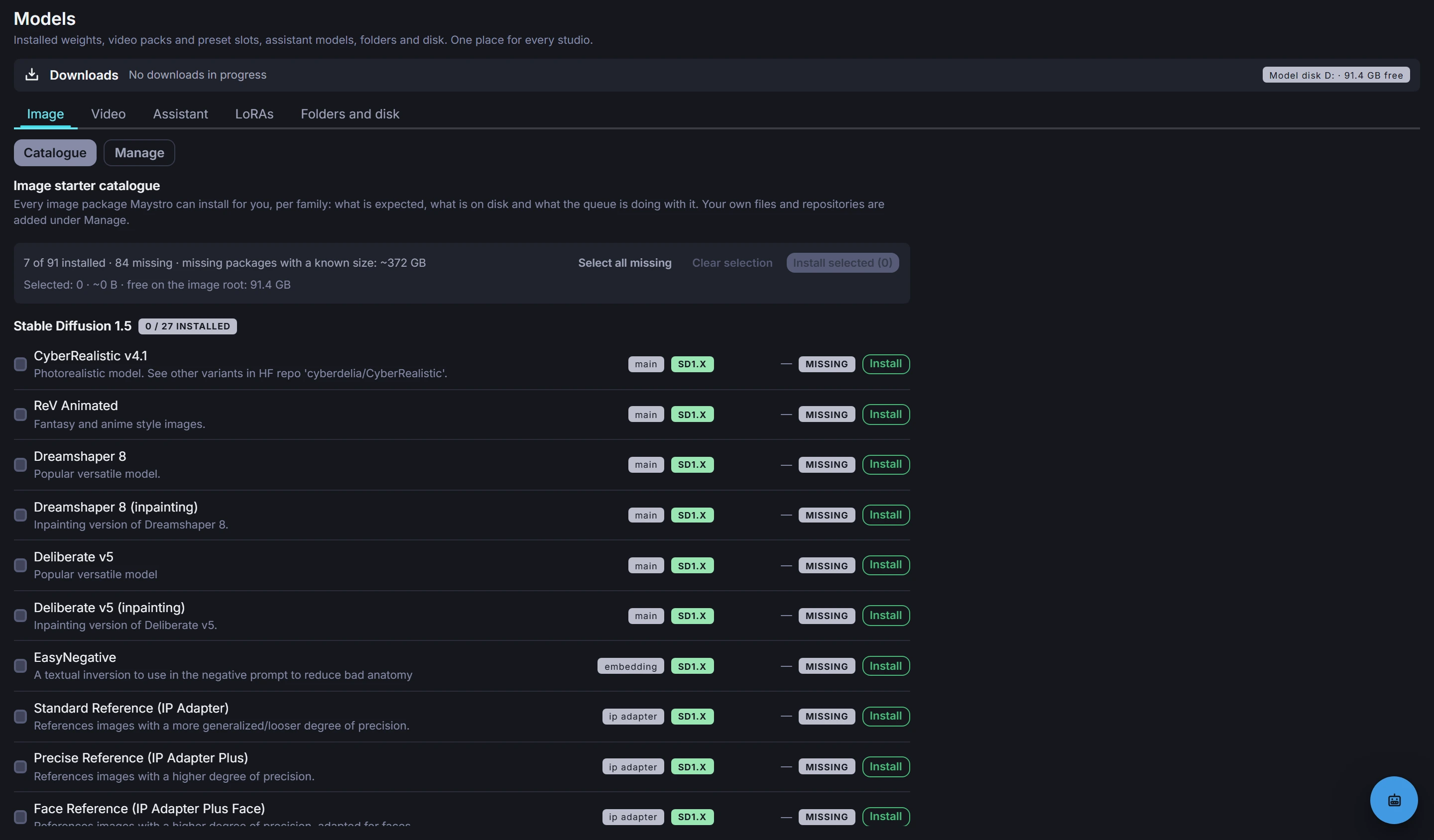
| Image | Catalogue: every image starter package per family (SD 1.5, SDXL, FLUX, Krea 2, Z-Image, the shared encoders and upscalers) with what is expected, what is on disk and what the queue is fetching; tick what you want and install it in one go. Manage: the image model manager, where your own files and repositories are added (a URL or local path, a HuggingFace repository, a folder scan) and each model's settings live. Details in Image models. |
| Video | Installation: the video starter set and the optional MiniMax H3 bundles, with live progress. Presets and model assignments: which file fills which slot of every video preset, what is missing, and your own derived presets. See Video presets. |
| Assistant | The assistant's orchestrator and writer models, the LLM server's status as a card, every GGUF it serves (catalog or your own file, with size and loaded state), and the caption models used for prompt extraction and dataset captions. See Assistant. |
| LoRAs | Every LoRA in one list, image and video, with its base model or family, trigger word, size, and the character it was trained for. Renaming and deleting stay at the source: the model manager, the character card, the training run. See Character LoRAs and Checkpoints and outputs. |
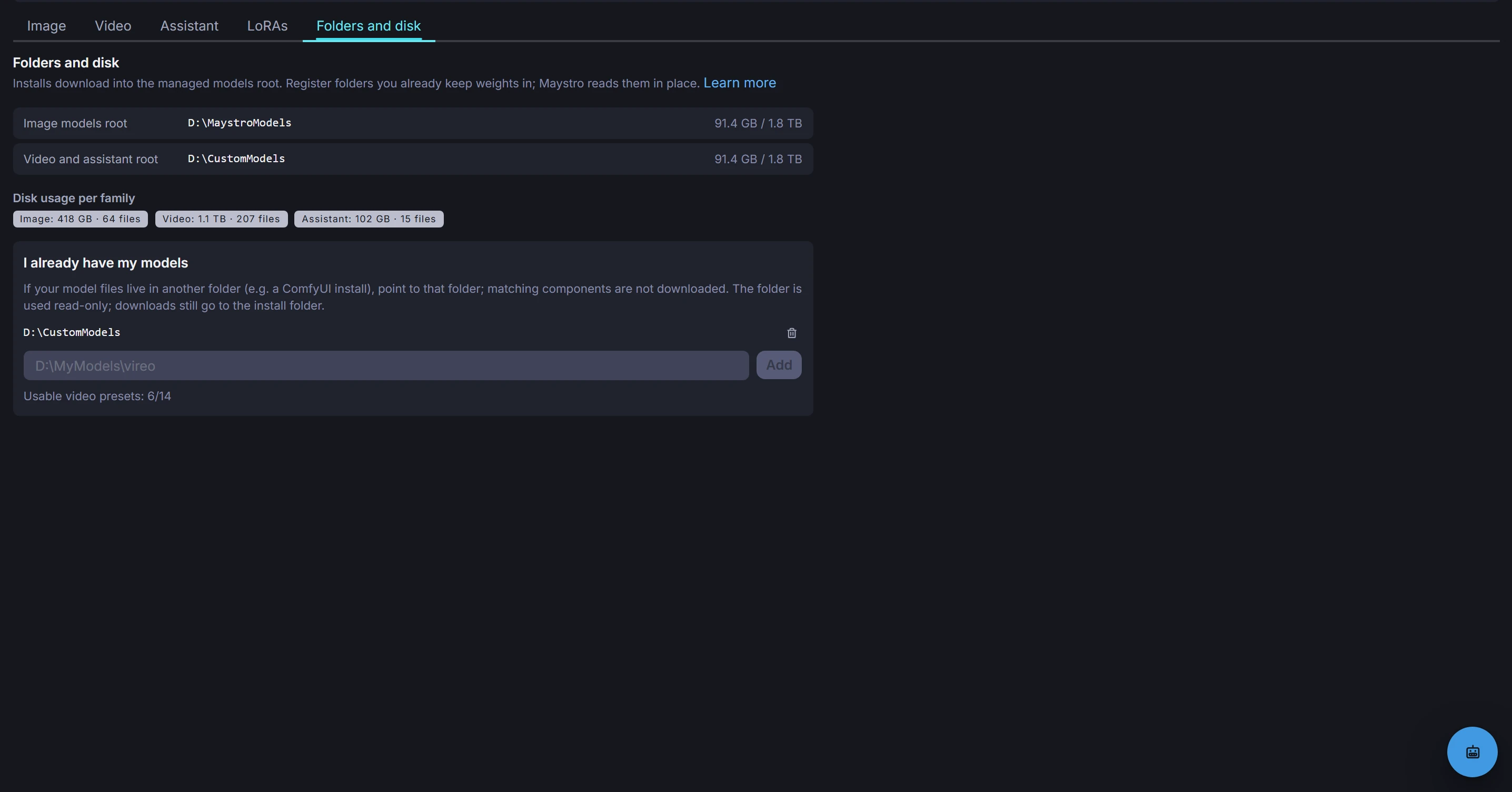
| Folders and disk | Every model root with its free space, the disk usage per family, and the folders you already keep weights in. See Models root and your own models. |
Image catalogue#
The Catalogue page of the Image tab lists every starter package Maystro can fetch for the image studio, grouped by family, each with the same three readings as the video installer: what the package is, whether it is on disk (installed, missing, or the queue's state and progress while it downloads) and a size where the catalogue records one (sizes are approximate). Tick the packages you want and Install selected queues them all; the line under the summary adds the selection up against the free space on the image root and warns when it would not fit, without stopping you: the queue simply stops when the disk fills. Caption and prompt models live on the Assistant tab. Models you already keep elsewhere, repositories and single files are added on the Manage page, which is the image model manager.
Downloads and the disk budget#
The Downloads strip under the title is the one queue for every download, whether it comes from the video and assistant installer or from the image model manager: each item shows its state and bytes, and can be paused, resumed, cancelled or retried there (a video install is stopped as a whole). Next to it the disk budget reads free space on the model disk against what is queued; when the image root and the video root sit on different disks, each disk gets its own line, and the line turns red when the queue would not fit. Downloads run in the background; leaving the page does not stop them.

Shortcuts into the area#
- The Install models strip above Video Studio opens the Video tab while the starter set is missing or installing.
- A shoot whose preset cannot resolve links to the preset assignments.
- The status chip in the assistant panel opens the Assistant tab.
- The model manager button next to the model picker in Image Studio opens the Image tab's Manage page; the install links in warnings about missing models open its Catalogue.