Models#
The Image tab of the Models area (top bar, Models; hotkey 5) is the image model manager: what is installed, how to add more, and the settings each model carries. Video packs, assistant models and folders have their own tabs in the same area.
Installing models#
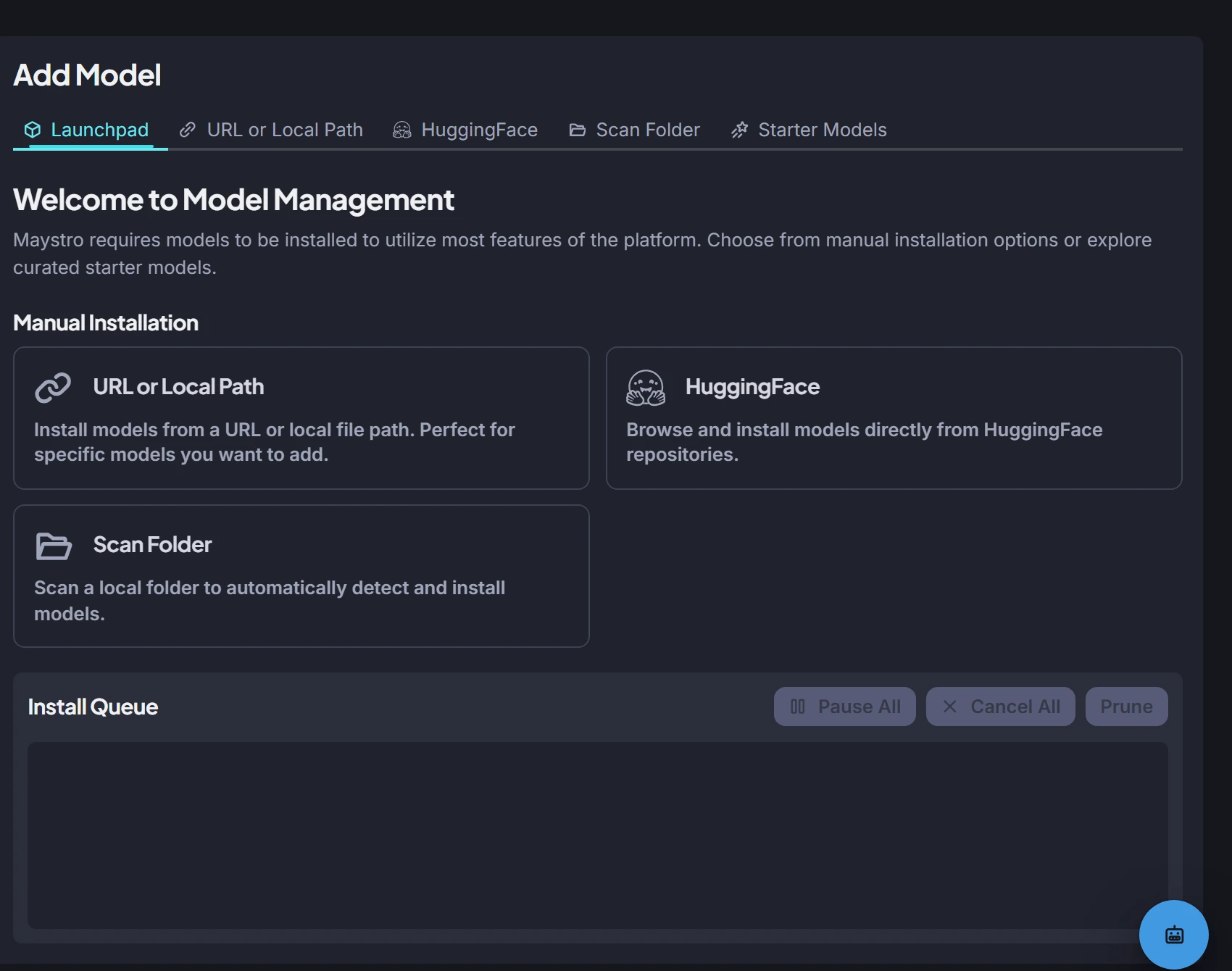
The launchpad on the tab offers three manual routes and the starter catalogue:
| Route | Use it for |
|---|---|
| URL or local path | A single file or folder: a .safetensors checkpoint, a LoRA, a diffusers folder, a GGUF. Paste a download URL or a path on this machine. In-place install keeps the file where it is instead of copying it under the models root. |
| HuggingFace | Paste owner/model-name; the tab lists the files in the repository and installs the one you pick. Gated repositories need a HuggingFace token, saved once in the tab. |
| Scan Folder | Point at a folder you already have (another tool's model library); every recognised model is listed with an install button, in place or copied. |
| Starter models | The curated catalogue: quick-start bundles per family (SD 1.5, SDXL, FLUX.1 dev, FLUX.2 Klein, Z-Image Turbo) and every model in the list, with size and license shown before download. |
Installs run in the install queue in the background; the tab shows progress and errors. If the connection drops during a download, Maystro reconnects up to five times and continues from the partial file before it pauses the install for a manual Resume. Maystro reads the file header to identify the architecture and type; when it cannot, the model appears with a warning and you set the base model and type by hand in its panel.
What is in the catalogue#
- Main models for each family, in bf16 and quantised (FP8, NF4, GGUF) variants; the encoders and VAEs they need are installed with them.
- Krea 2: Krea-2-Turbo, the model to generate with, and Krea-2-Raw, the training base for Krea 2 character LoRAs, plus the VAE and Qwen3-VL encoder they share — the official bf16 files from Krea's Hugging Face repositories, about 24.5 GiB each for Turbo and Raw. They are gated (see below). Community merges and quantised Krea 2 files are not in the catalogue; bring them with the URL or path route.
- FLUX.2 Klein: Klein 4B and 9B (Diffusers, FP8 and GGUF), their Qwen3 encoders and the FLUX.2 VAE, plus FLUX.2 Klein Base 9B, the training base for FLUX.2 Klein character LoRAs (about 16.9 GiB; not meant for generation). Black Forest Labs' 9B repositories are gated; the 4B ones are open.
- ControlNets and Control LoRAs, IP-Adapters (standard, precise, face), the Z-Image ControlNet Union and Tile.
- Upscale models (RealESRGAN, ESRGAN, SwinIR, AnimeSharp), embeddings, example LoRAs and style models.
- Vision and text LLMs, speech models and voices used by the Prompt Builder's Fill from Image, the voice assistant and the video translation button.
- The video model packs are installed from the video Models page.
Gated downloads#
Some repositories — Krea 2, FLUX.1 dev and the FLUX.2 Klein 9B family among them — are gated on Hugging Face: their files download only for a signed-in account that has accepted the model's licence on its page. Such catalogue rows carry a Gated badge, and their family shows a Hugging Face access box before anything is downloaded:
- Expected: an account on huggingface.co, the licence accepted on the model page (the box links it) and a Hugging Face access token saved in Maystro. When no valid token is stored the box shows the token field; a token with read access, created under Settings → Access Tokens on Hugging Face, is enough. The token is kept in the Hugging Face login cache of this machine; Maystro does not send it back to the browser or write it next to the downloads.
- Found, per repository: access granted, licence not accepted yet, no valid Hugging Face token, or Hugging Face could not be reached. The last one does not hold the install back, since the download may still work.
- Result: a row's Install opens once every repository it needs grants access. After accepting a licence in the browser, press Check again.
The weights come straight from the publisher's repository with your token; Maystro does not distribute them, and their licence applies to you as their user. For Krea 2 that is the Krea 2 Community License (linked in the box). In short — read the licence itself — commercial use is free below one million US dollars of annual company revenue (above it Krea offers an enterprise licence), fine-tunes and LoRAs are allowed, and whoever deploys the model must apply reasonable content filtering. For the Black Forest Labs repositories it is the FLUX.1 [dev] Non-Commercial License or the FLUX Non-Commercial License (linked in the box); read it before any commercial use.
Managing a model#
Select a model to open its panel: name, description, base model, type, format and path; the default settings (steps, CFG or guidance, scheduler, size, VAE) applied when you select the model on the Generate tab; a cover image; trigger phrases for LoRAs. From here you can convert a checkpoint to diffusers or GGUF, update the path, or delete the model (the file is removed unless it was installed in place).
Sync Models compares the models folder with the database and lists orphaned folders that can be deleted safely.
Where files live#
All copied installs land under the models root, organised by base model and type. In-place installs and scanned folders stay where they are and are referenced by path. Roots, folder layout and the licensing of weights are covered in Models root and your own models.