Apply a character to a person#
A character LoRA used in a generation gives its face to everyone in the picture: in our two-person test scenes the second woman came out as the character's twin and a man took on her features, on Krea 2 and FLUX.2 alike. Apply a character to a person fixes this in a second step: generate the scene without the character, then give the character to the person you choose. Only that person's head and hair are regenerated; everyone else and the scene keep their pixels. It works on any picture in the gallery, and on several people at once, each with their own character.
When a character's LoRA is in the generation settings and the prompt describes several people ("a woman and a man", "two friends", "a family", a Prompt Builder prompt with two people among its subjects), a warning under the LoRA list names the character and links here. The prompt check is a rule of thumb for English and Turkish prompts; it does not stop the generation.
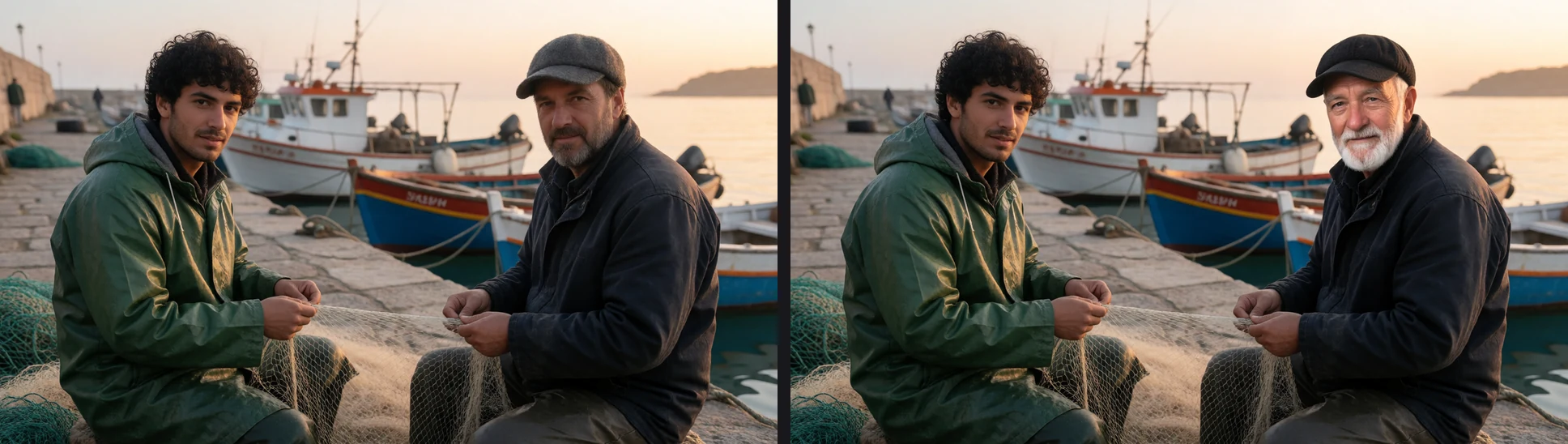
Left: the scene, generated without the character. Right: the demo character given to the fisherman on the right; the other fisherman and the harbor keep their pixels.
How to#
- Open the picture in the viewer and click Apply a character to a person (the person icon next to Extract prompt).
- The faces are outlined and numbered from the left. Click the face of the person who should become a character; click it again to unselect. Up to four people per run.
- For each chosen face pick the Character (from Character Studio). Change the hair too (on by default) regenerates the hair down to the shoulders with the head; turn it off to keep the person's hairstyle (a hat, a hairstyle you like) and change only the face.
- Under each face the plan says what will run and why, for instance FLUX.2 Klein 9B (Diffusers) with the character's face close-up (no LoRA) or Krea-2-Turbo with LoRA … at 1, or what stops it.
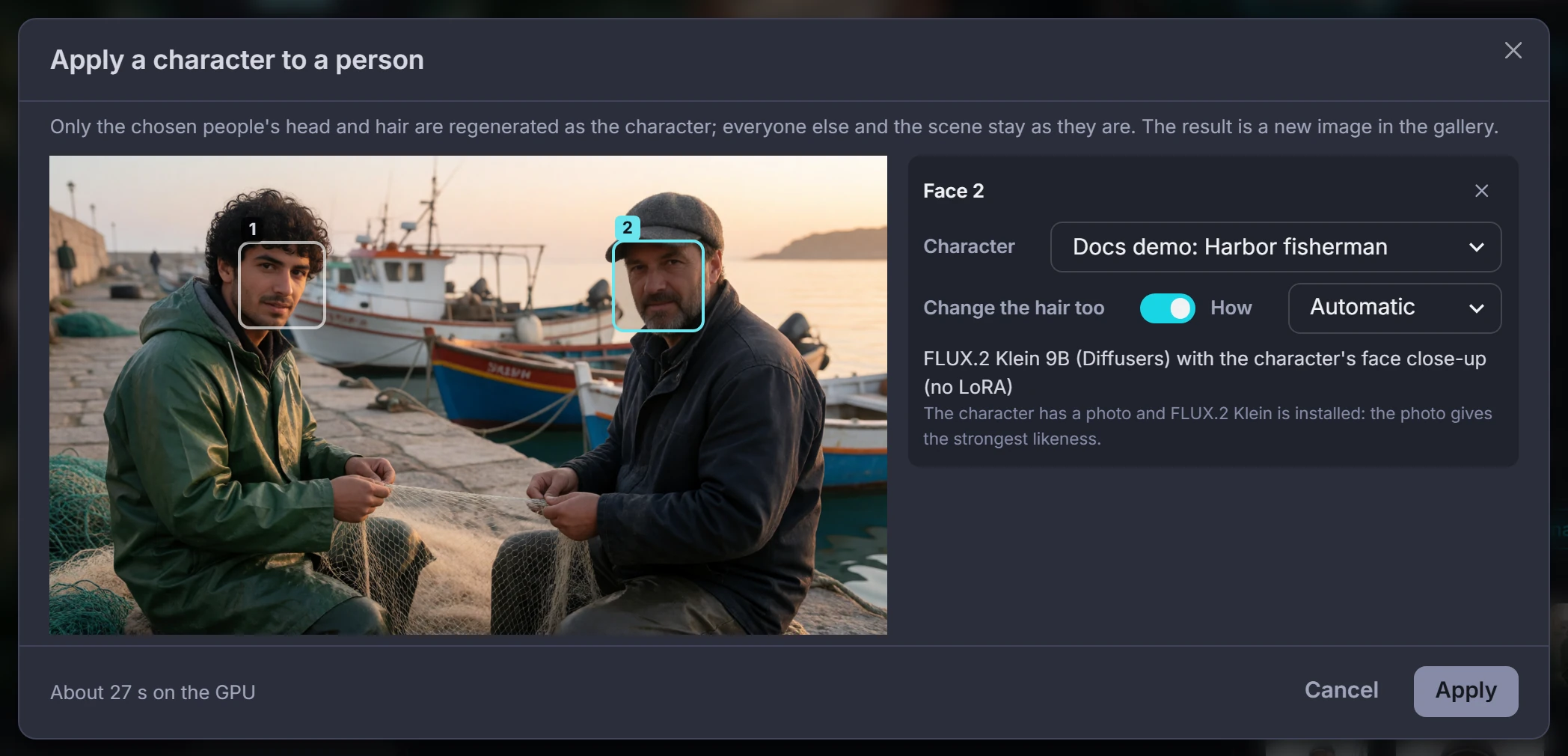
- Apply queues the job. The result arrives in the gallery as a new image, on the source picture's board; the source is not changed. Count on about 25 to 30 seconds of GPU time per person.
Apply the character after the scene#
The same two steps can run as one generation. When the warning under the LoRA list appears for one character, turn on Apply the character after the scene and choose To whom: the person on the left, the person on the right, the person in the middle or the largest face. Then generate as usual:
- the scene is generated without the character's LoRA (the other LoRAs stay), so nobody takes on the character's likeness;
- when the scene is done, Maystro finds its faces, picks the one at the chosen position and queues Apply a character to a person on it, with the same rules as the window (the character's photo on FLUX.2 Klein, else the LoRA you had selected);
- the result arrives next to the scene, on the same board, as a second image; the scene itself is kept.
A notice says which face was given the character (Face 2 of 2, the person on the right) or why nothing was queued — no face found in the scene, the character has neither a photo nor a LoRA. Each image of a batch gets its own second image. The faces are counted left to right as you see the picture; if the scene does not put the person where you expected, open it in the viewer and pick the face in the window instead.
The switch is offered when the generation holds the LoRAs of one character; with two characters, apply them in the window, one face each. It is not remembered after a reload, and a scene still waiting in the queue when Maystro restarts is generated without the second step.
How the character is given#
| From the character's photo | With the character's LoRA | |
|---|---|---|
| Needs | The character's photo (its face close-up angle, else its base image) and a FLUX.2 Klein model | An image LoRA (Krea 2 or FLUX.2) trained for the character |
| Likeness in our test | 0.90 face-embedding similarity to the real photos | 0.74 to 0.79 with Krea 2, 0.70 with FLUX.2 |
| The other people | Unchanged | Unchanged |
Automatic (the default) uses the photo when it can and falls back to the LoRA, Krea 2 first; the plan line says which one and why. Choose From the character's photo or With the character's LoRA to force one. For comparison, the same LoRAs used in the generation itself gave 0.68 (FLUX.2) and 0.77 (Krea 2), and the other person got the character's face in all six test scenes.
Tips and limits#
- A face is offered when it is visible and at least about 32 pixels wide; profiles and very small faces in a crowd may not be found.
- Faces are numbered left to right as you see the picture: Face 1 is the leftmost.
- The assistant can do the same ("put Mia on the woman on the right in that picture"); see Assistant.
- The result's metadata records which character, engine and models were used.